


Apple Music is a powerhouse of streaming, offering over 100 million songs ad-free. However, there is a catch that frustrates many users: portability. Even if you pay for a subscription, every song you download is locked inside the Apple ecosystem using the M4P format (encrypted AAC).
What happens if you cancel your subscription? Those 10GB of downloaded songs vanish. What if you want to play your favorite Apple Music playlist on a Sony Walkman, a Tesla, or a DJ software like Serato? You can’t.
This is where converting Apple Music to MP3 becomes essential. In this guide, we will walk you through the most reliable method to download Apple Music songs to MP3 using ViWizard Apple Music Converter—a professional tool designed to bypass DRM while retaining 100% original audio quality.
Why Do You Need to Convert Apple Music to MP3?
Before we dive into the “how,” let’s look at the “why.” Apple Music tracks are protected by Digital Rights Management (DRM). This encryption ensures that the files can only be played through the Apple Music app, iTunes, or authorized devices.
By converting Apple Music to MP3, you gain:
- Universal Compatibility: Play your music on any device—Android phones, MP3 players, smart TVs, car stereos, and gaming consoles.
- True Ownership: Keep your music collection forever, even if you cancel your Apple Music subscription.
- Creative Freedom: Use the audio for non-commercial editing, sampling, or creating ringtones.
Best Downloader of Apple Music: ViWizard Apple Music Converter
When searching for a way to download Apple Music to MP3, you will find dozens of screen-recording tools that claim to do the job. However, these often result in poor audio quality and take hours of real-time recording.
ViWizard Apple Music Converter stands out because it works at 20X to 30X faster speeds using a technical decryption method rather than a recording method. It converts the encrypted M4P files to universal MP3, M4A, FLAC, or WAV formats without losing a single bit of quality.
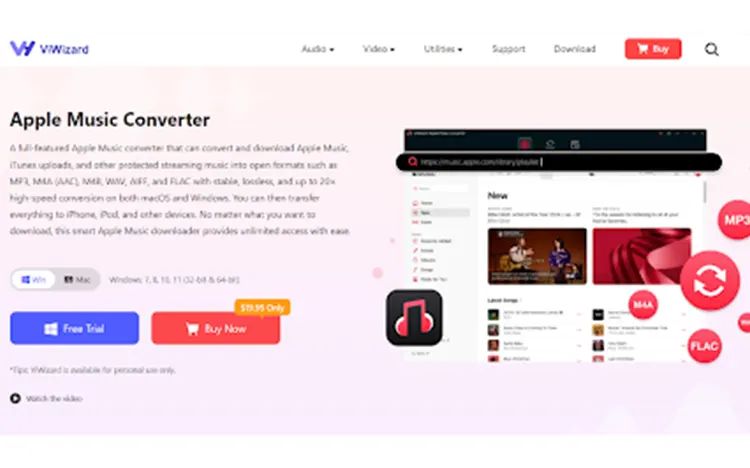
Key Features of ViWizard:
- Lossless Conversion: Converts Apple Music tracks at 320kbps bitrate (CD quality) in MP3.
- ID3 Tags Preserved: Automatically saves song titles, artists, albums, and artwork so your library stays organized.
- Batch Conversion: Convert entire playlists or albums at once, saving hours of manual work.
- Built-in Apple Music Web Player: You don’t need to install iTunes; it works seamlessly with the Apple Music web interface.
- Multiple audio formats supported: ViWizard allows you to download music from Apple Music to MP3, AIFF, WAV, M4A, FLAC, and M4B.
Step-by-Step Guide: How to Download Apple Music to MP3
Ready to liberate your music library? Follow this step-by-step tutorial to use ViWizard Apple Music Converter.
Step 1: Download and Install ViWizard
First, download the appropriate version of ViWizard Apple Music Converter for your operating system (Windows or Mac). Install the software by following the on-screen instructions.
Step 2: Launch the Program and Sign in to Apple Music
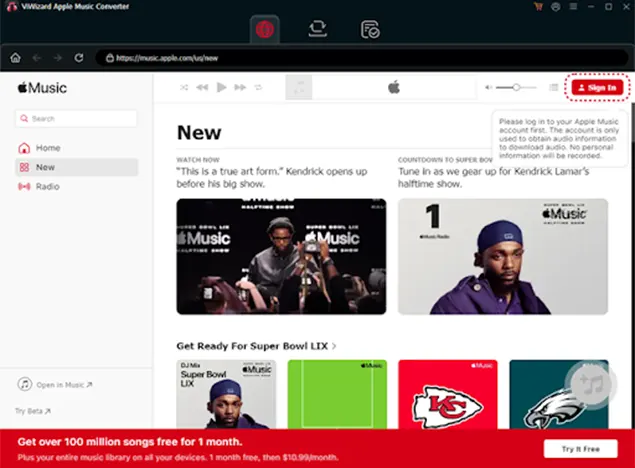
Open ViWizard. You will see a built-in web browser that loads the Apple Music web player. Click “Sign In” and enter your Apple ID credentials. This is a secure login; the software only accesses your music library to stream the audio for conversion—it does not store your password.
Step 3: Select Your Output Format (MP3)
Before adding songs, configure your output settings. Click the three-line menu icon (or the “Preferences” gear icon) in the top-right corner.
- Go to the “Convert” tab.
- Set “Format” to MP3.
- Adjust the Bitrate (we recommend 320kbps for high quality) and Sample Rate (44.1 kHz is standard for CD quality).
Step 4: Add Apple Music Songs to the Conversion List
- Navigate through the built-in browser. Find the playlist, album, or individual songs you wish to convert.
- Simply drag and drop the song titles into the ViWizard conversion panel on the right side of the window.
- Alternatively, click the “Add Music” button and paste the link to a playlist.
Step 5: Start Converting
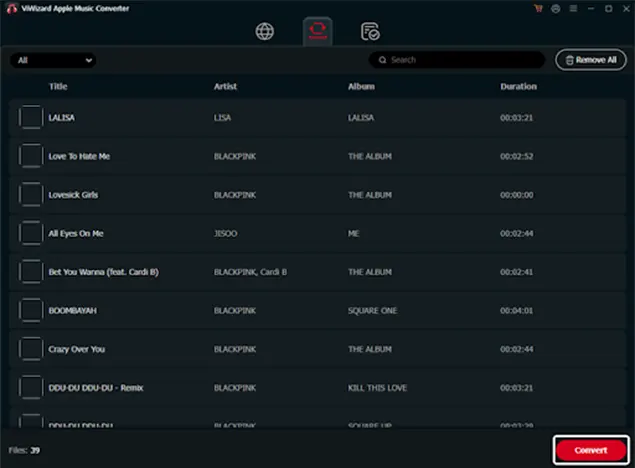
Once your songs are loaded, click the “Convert” button at the bottom right. ViWizard will begin processing the files. Thanks to its high-speed decryption engine, a full album typically converts in just a few minutes.
Step 6: Locate Your MP3 Files
After the conversion is complete, click the “History” tab or the “Folder” icon to locate your unencrypted MP3 files. You can now transfer these files to any device you want—no restrictions.
Tips for a Smooth Conversion Experience
- Stable Internet Connection: Since ViWizard streams the audio from Apple Music to convert it, a stable Wi-Fi connection ensures the process runs without interruptions.
- Batch Processing: To save time, use the “Playlist” conversion feature. You can convert a playlist of 200 songs in one go without having to click “Add” for each song individually.
- Keep Software Updated: Apple occasionally updates its security protocols. Ensure you are using the latest version of ViWizard to maintain compatibility.
Conclusion
If you are tired of being locked into the Apple ecosystem and want to truly own your music library, converting Apple Music to MP3 is the solution. ViWizard Apple Music Converter offers the fastest, safest, and highest-quality method to do so. With its intuitive drag-and-drop interface and lossless 320kbps MP3 output, you can build a permanent music collection that works on any device.
Ready to take your music everywhere? Download ViWizard Apple Music Converter today and start converting your Apple Music library to MP3 in minutes.